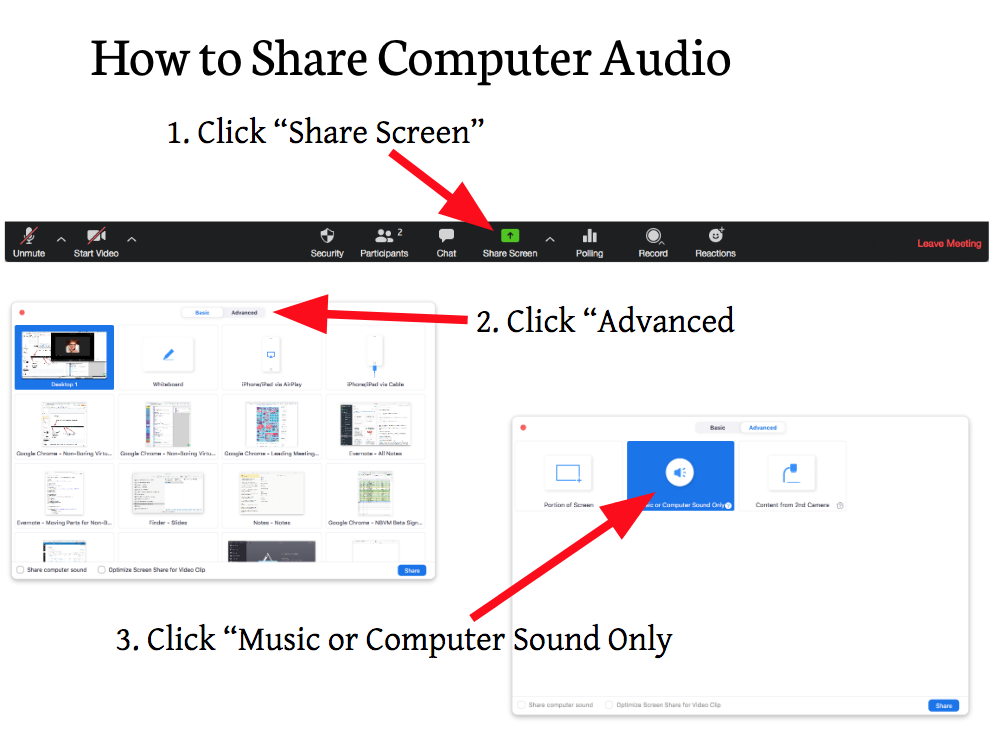
Sharing audio through your computer system on Zoom is done through the Share Screen icon.
1. Click on “Share Screen.”
From there, a window will open up with a bunch of different small windows. Ignore all those small windows! Look at the very top of the large window, where you’ll find a button that says “Basic,” and another button that says “Advanced.”
2. Click “Advanced.”
This will take you to a new window, with three options.
3. Select the middle option, “Music or Computer Sound Only.”
4. Click the “Save” button at the bottom right hand corner of the window to get back to your Zoom room.
Now you’ll be able to play any music or sound file on your computer and your participants will hear clean, loud audio.
Tip: the sound can come through VERY LOUD! It’s a good idea to do a sound check before your meeting, to make sure you don’t blast people’s eardrums!