Creating Breakout Rooms Manually
The previous lesson covered how to create breakout rooms automatically — letting Zoom do the math for you.
But what about those cases when you want to have more control over who gets assigned to which room?
No problem! Zoom’s got you covered!
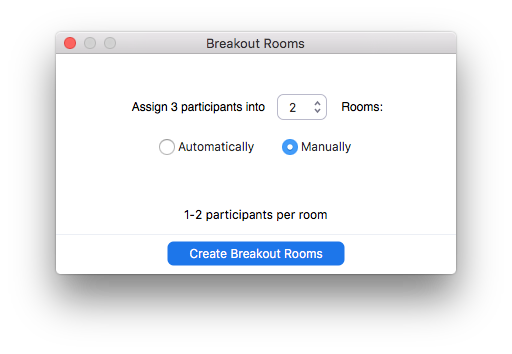
Step 1: Select Manually
Start by selecting the radio button to create breakout rooms manually:
Your next panel will be very spare, with only rooms, and no participants:
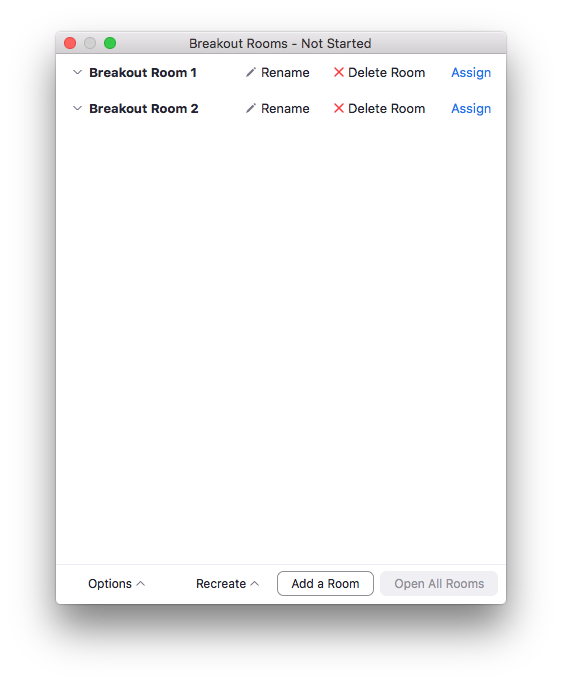
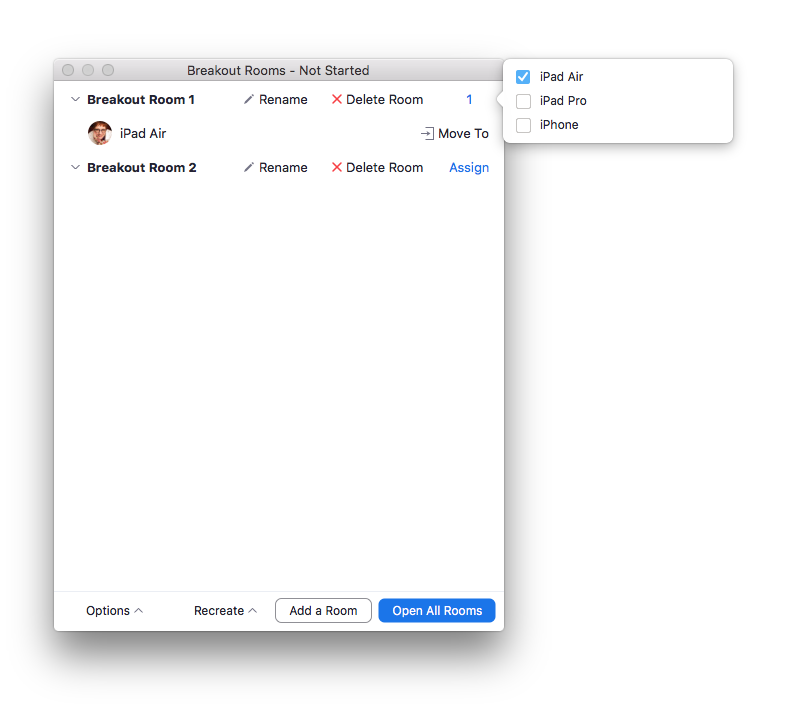
From here, add as many rooms as you want (see below), then click “Assign” next to any room. A small panel will pop up with all the participants in your meeting, with checkboxes next to their names.
As soon as you check a box, that participant will be added to the room.
Step 2: Add Rooms (if applicable)
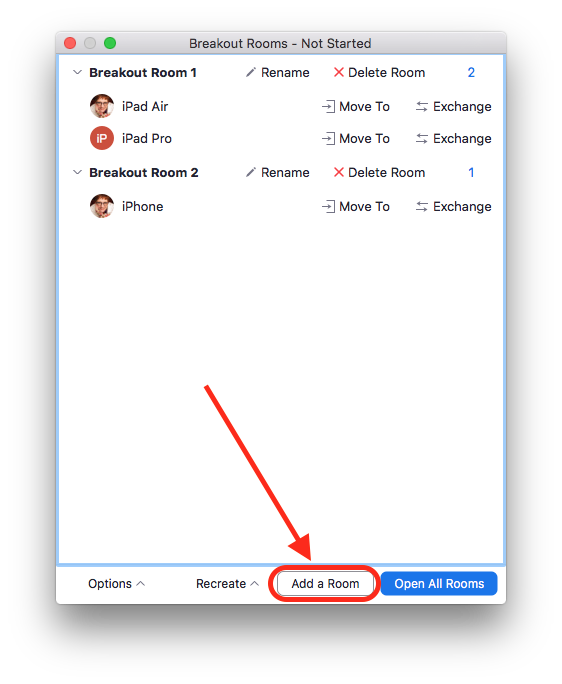
You may want more rooms than Zoom created for you. If so, click the “Add a Room” button at the bottom of the Breakout Rooms panel to add more rooms.
Feel free to rename them, too, by clicking on the Rename link.
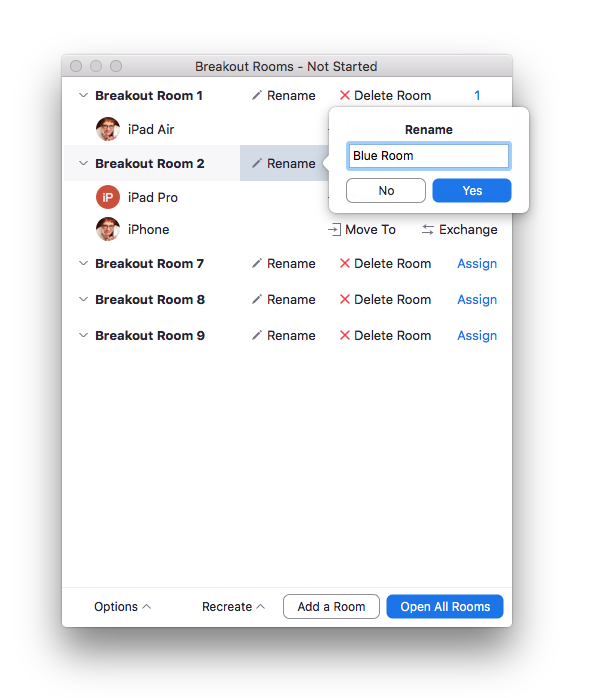
Type the new name in the field, then click “Yes.”
Step 3: Move or Exchange Participants (if applicable)
At this point, you may realize that Norma and Ted from Marketing, who always have lunch together, have been assigned to a room together, and your goal for your meeting was to get a little cross-fertilization going.
No problem!
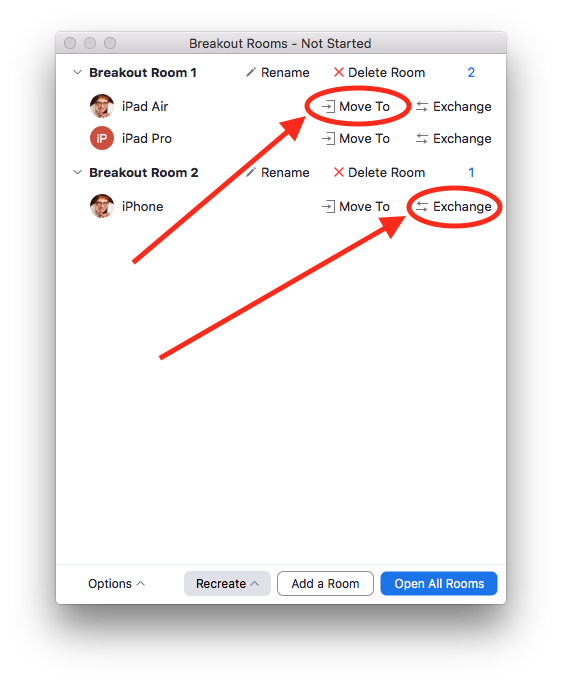
You can click on the “Move To” link to move one of the buddies into another room…
Or click on the “Exchange” link to swap one of them with someone else, to keep the numbers in each room even.
Easy, breezy!
…then you can click on the “Move To” link, and pick a room to assign that/those participant(s) to, as shown below (you can see I’ve added some breakout rooms here, so you can see what it looks like to have multiple options when you click the “Move To” link):

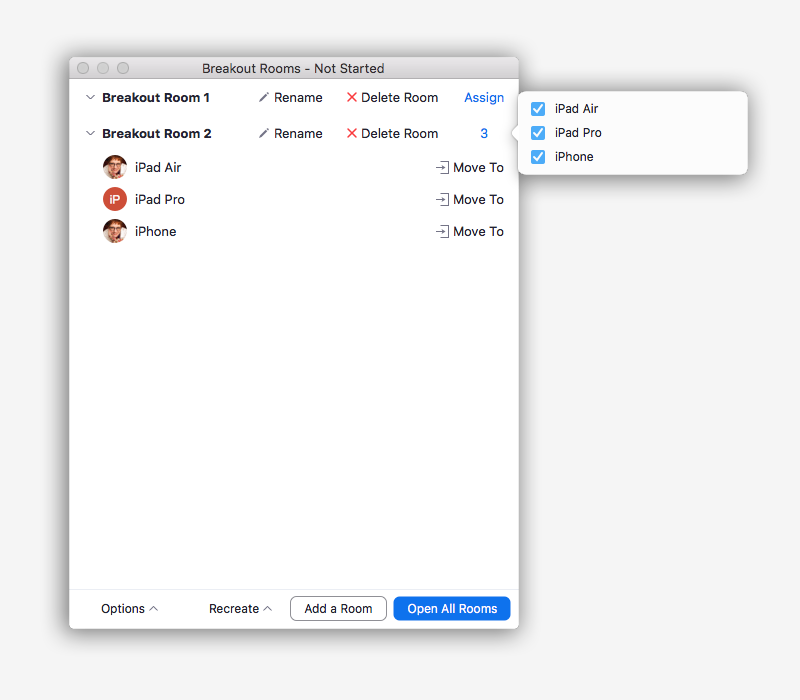
NOTE: It’s a good idea to NOT click on the number next to the room (which is the number of participants assigned to that room). If you do, a little panel will pop up, with check boxes, as shown below. BEWARE: if you UNcheck those boxes, your participants will be removed from the Breakout Panel. This isn’t a total disaster, but it does mean you’ll have to reassign them to rooms AFTER you open the breakout rooms.
Before you click the blue “Open All Rooms” button (which is what will beam everyone up into the breakout rooms), WAIT!!
First, you’ll want to make sure your Options are configured the way you want, so be sure to check out that lesson. 🙂