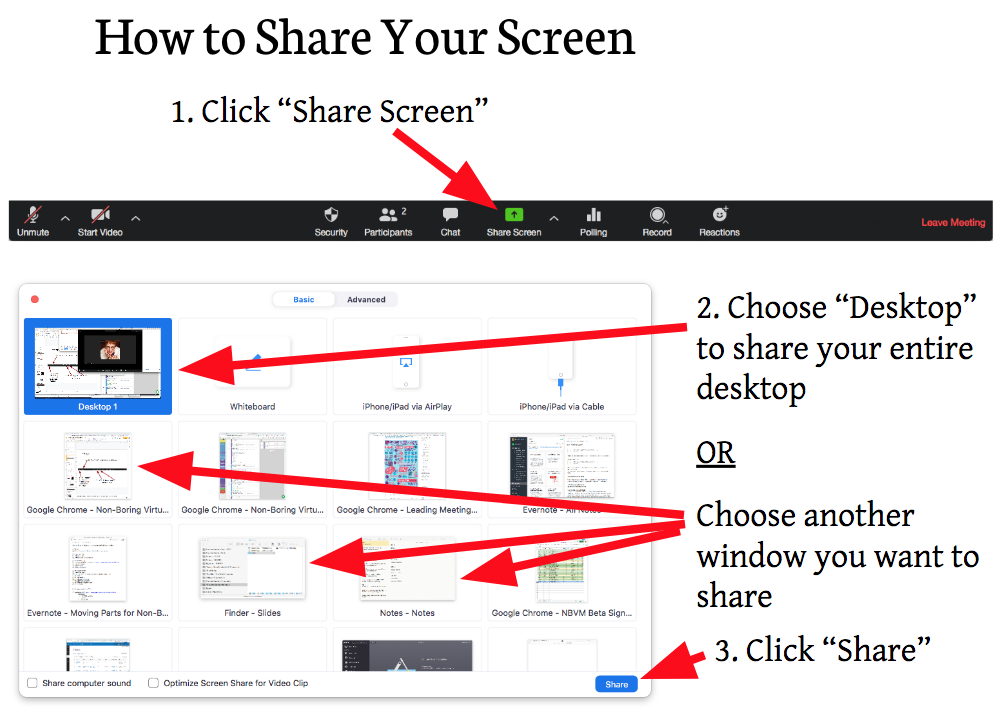
Sharing your screen on Zoom is done through the Share Screen icon.
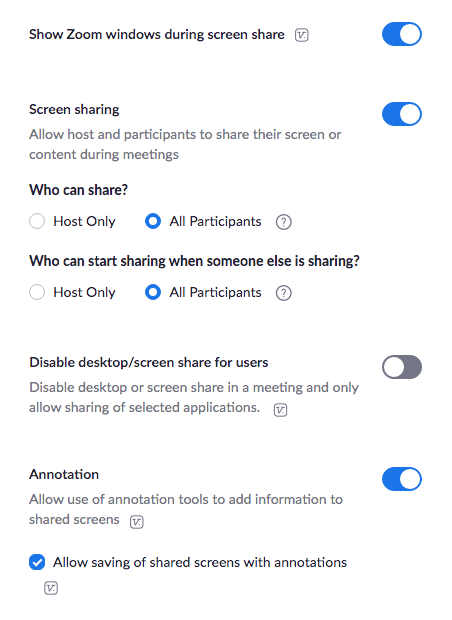
Before you can share your screen, you’ll need to make sure you have your settings on your Zoom account (at zoom.us) set to allow screen sharing.
Here’s how I have my settings in my account:
Once you’ve enabled screensharing in your account, here are the steps to share your screen in a meeting:
1. Click on “Share Screen.”
From there, a window will open up with a bunch of different small windows.
One of the windows may say something like “Desktop.” That’s likely to be the default selection.
At this point, you can leave the Desktop selected, or choose another option to share.
If you select this option, when you share your screen, it will show your entire computer desktop to everyone in the meeting.
Be aware that anything that’s visible to you, and any notifications that pop up during your meeting, will be visible to your meeting participants!
Instead of sharing your entire desktop, you may also choose another window to share, which is what the other windows below the first row represent.
2. Choose “Desktop” to share your entire desktop, or choose another window you want to share
3. Click the “Share” button at the bottom right of the window