
If you want to screenshare your Zoom window, there are two places you have to adjust your settings: in your Zoom account, and in the Zoom client app.
Zoom Account
Log into your Zoom account online, at zoom.us.
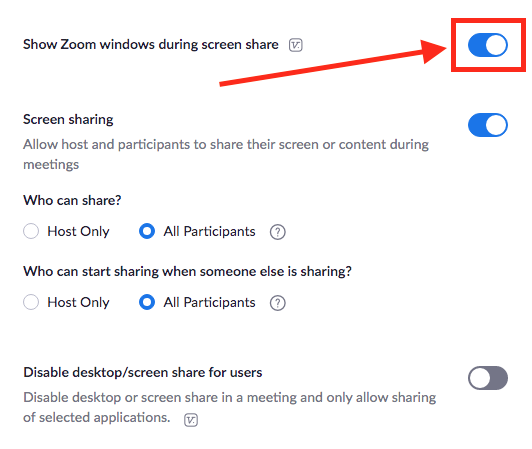
Under Settings > In Meeting (Basic), make sure “Show Zoom windows during screen share” is set to “on” as shown below:
Zoom Client App
For some reason, changing that setting isn’t enough. There’s a second setting that you need to adjust as well!
Start a new meeting from your Zoom client app on your computer.
Now open up your meeting settings by clicking on the little triangle to the right of the “Start Video” icon. (You can also click on the little triangle to the right of the microphone icon to open up the Settings window as well.)
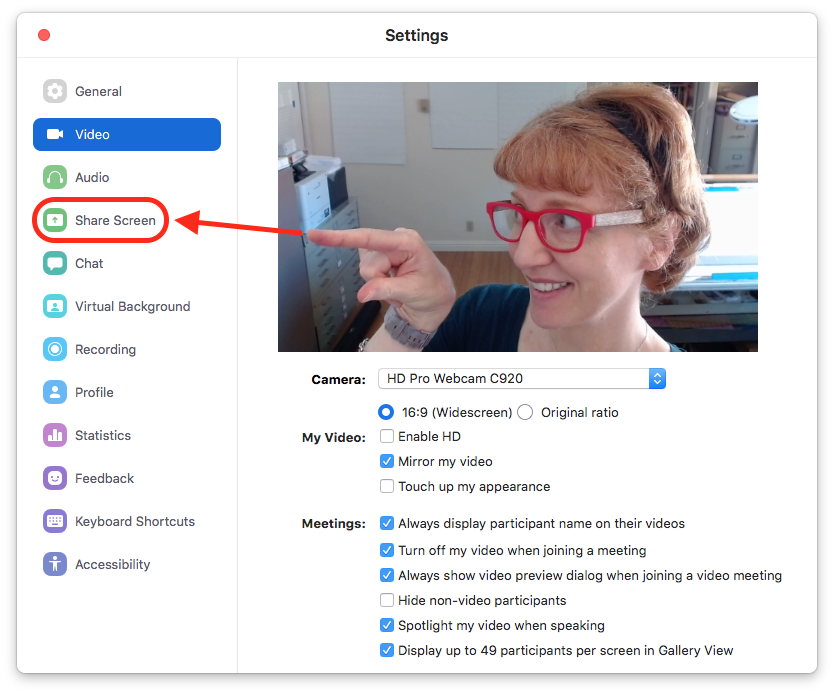
From here, on the left hand side of the window, you’ll see a column of icons. Click on the one that says “Share Screen.”
That will open a new window, with a checkbox to “Show Zoom windows during screen share.”
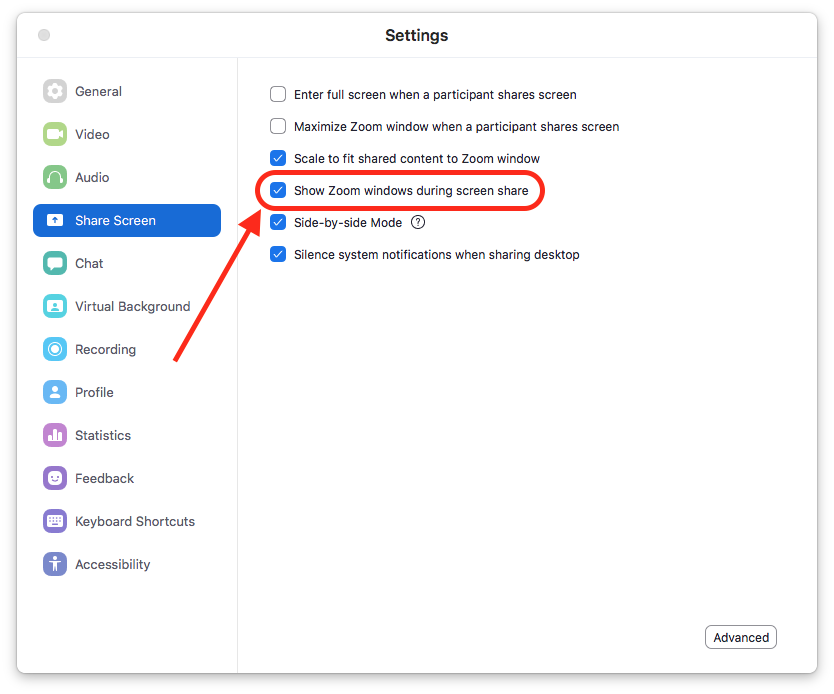
Check that box, and this should allow you to now share your screen.
I say “should,” because some people still have trouble with this function not working.
What can I say… technology.